
An accessibility checklist for recording software tutorials
Build spoken descriptions, readable screen captures and caption review into the production brief for a SaaS walkthrough.

A software tutorial can look perfectly clear to the person who recorded it and still be impossible to follow without seeing a tiny cursor. Accessibility starts when the script decides what information lives in speech, text and pictures. Ask a practical question for each step. Could a viewer identify the control, understand why it matters and recognize success if one of those information channels were unavailable?
Write the visual action into the narration
Consider a walkthrough that assigns a read-only role. “Click here, choose this one, and you're done” leaves a listener guessing. Try “In workspace settings, open Members, select Sam and change the role to Viewer. The role column now shows Viewer beside Sam.” The second version provides the control names, operation and outcome. Use a demonstration account with invented data, then give the product owner a chance to confirm the exact terms.
For actions with a visual consequence, leave enough time for the listener to connect narration to the screen. W3C’s media guidance covers describing visual information, captions and descriptive transcripts. Plan which essential details will fit naturally into the spoken explanation and where a separate description or text alternative would help. The ideal time to make this decision is before recording a tightly timed voice track.
Capture a screen the viewer can read
Set up a clean interface at a scale that leaves the target control legible when the video is displayed on a small screen. Avoid relying on a red outline or a cursor trail to convey the only indication of an error. Use the interface label and a plain-language explanation. If a magnified inset hides the rest of the workflow, briefly restore the full view so viewers can orient themselves.
Record the result after the action and allow time to read it. If the tutorial promises a keyboard route, demonstrate the correct sequence in the actual product and check where focus lands afterward. A producer can describe a product limitation accurately while still providing an accessible explanation. Document any issue the product team needs to address separately.
Review the finished lesson three ways
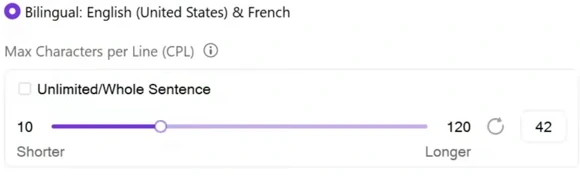
First, play the tutorial with the screen hidden. Mark every place where the spoken instructions require a visual guess. Second, play it muted with captions enabled. Verify product names, punctuation, speaker changes and meaningful non-speech sounds. YouTube supports adding caption files through Studio. Review captions in the player because line breaks and timing affect whether viewers can read them while inspecting the product.
Finally, ask someone unfamiliar with the workflow to complete it from the published instructions. Give them the right role and a clean workspace, then observe where they pause or choose a different control. Save the corrections with the script and caption files. An accessible tutorial delivers more than an approved export. It gives the next editor enough information to preserve the instructions when the interface or terminology changes.
Sources and further reading
- W3C Web Accessibility Initiative · Making audio and video accessible
- YouTube Help · Add subtitles and captions