
Create a Bitly QR code for a software launch and test the handoff
Create a campaign QR code, verify it at real viewing size and check the effect of a destination change on linked placements.
A QR code makes sense in a launch video when someone can watch on one screen and act on another. A buyer watching the same video on a phone also needs a normal link they can open. Plan both routes together. The question for a marketing team evaluating Bitly is whether it can manage the destination throughout the life of the video, including after the launch offer changes.
Decide where a scan should land
Consider a conference demonstration promoting a new software trial. The first destination might be a mobile-friendly page explaining the use case and offering signup. After the event, the same recording might become an onboarding resource. Decide whether that change deserves a different code or an updated destination. If conference materials will keep circulating, redirecting the old code could send earlier viewers to an unexpected page.
Write a small placement sheet with the destination URL, purpose, intended audience, owner, change date and every surface that will display the code. Include printed signs, slides, video end frames and any attached short link. Label the printed or visual prompt with the expected action, such as “Open the trial setup guide,” so someone can decide whether scanning is worthwhile.
Create the code and test the real creative
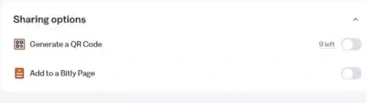
In Bitly, create a QR code and enter the destination. Select the domain and decide whether you need an associated short link. Use an identifiable title and confirm what your current plan allows before choosing design or reporting options. Download the code and place it in the actual video or slide. Leave enough space around it and keep the background visually quiet.
Scan it from the exported asset at the size and distance your audience will experience. A code that works in the design preview may be hard to scan from a projected video after compression. Try ordinary playback, a paused frame and another device. Have a colleague follow the normal text link from a phone too. Check the final page, language and trial availability. A successful scan merely proves the camera recognized the pattern.
Decide who can change the destination
Bitly documents redirecting an existing code on paid plans and explains that a connected short link changes destination too. Review the current plan limits and every placement in your sheet before using that feature. Change the target only after the owner approves the new journey. Then scan the original exported frame or printed proof and test the associated short link to confirm where both now go.
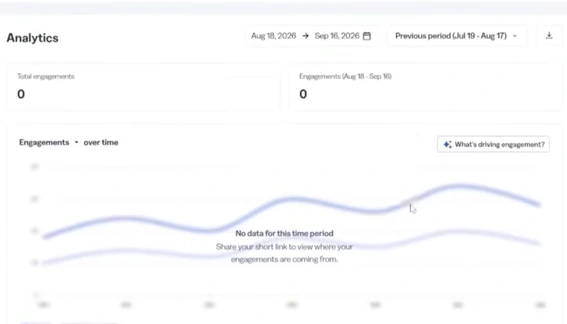
If audience expectations differ across placements, make a separately owned code for the new use and leave the earlier route in place. Keep the exact exported artwork, tested links and a dated record of changes. For a launch buyer, this operational detail can matter more than decorative customization. It determines whether teams can maintain a clear promise across a recording, a slide deck and printed material long after the event.